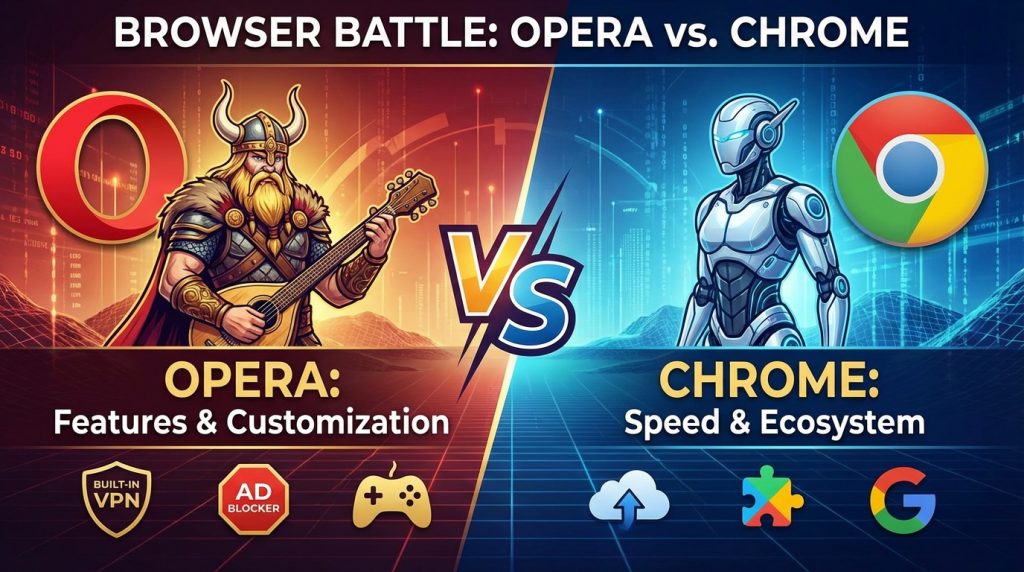
When picking a web browser, users often compare Opera vs Chrome to find the right fit for their needs. Opera brings built-in features like VPN, ad blocking, and messenger integration that appeal to privacy-focused users. Chrome dominates market share and offers deep integration with Google services. Both browsers run on the Chromium engine, providing similar rendering and speed. The choice between them depends on whether you prefer a feature-rich browser out of the box or a simpler platform backed by Google’s ecosystem.
What is the Main Difference Between Opera and Chrome?
The main difference between Opera and Chrome is that Opera comes with built-in features like a free VPN, ad blocker, and sidebar integrations for messaging apps, while Chrome offers a more minimalist browser experience that relies heavily on extensions from its vast Web Store to add similar functionality.
What is Opera and What is Chrome?
Opera is a web browser developed by Opera Software. It was first released in 1995, making it one of the oldest browsers still in active development. Opera runs on the Chromium engine, the same open-source project that powers several modern browsers. It targets users who want built-in tools without installing extra extensions. The browser is available on Windows, macOS, Linux, Android, and iOS.
Download Opera now and see the difference.
Chrome is a web browser created by Google. It launched in 2008 and quickly became the most popular browser worldwide. Chrome also uses the Chromium engine. It integrates deeply with Google services like Gmail, Google Drive, and Google Search. Chrome prioritizes speed, simplicity, and seamless syncing across devices using a Google account.
Key Differences Between Opera and Chrome
- Built-in VPN: Opera offers a free, unlimited VPN directly in the browser. Chrome requires a third-party extension or separate software for VPN access.
- Ad Blocker: Opera has a native ad blocker that works out of the box. Chrome users must install an ad-blocking extension.
- Sidebar Functionality: Opera features a sidebar with quick access to messaging apps like Telegram, WhatsApp, and Facebook Messenger. Chrome lacks this built-in feature.
- Data Ownership: Google collects extensive user data through Chrome for advertising purposes. Opera collects less data and offers more privacy controls by default.
- Resource Usage: Opera generally consumes less RAM than Chrome during typical browsing sessions. Chrome is known for high memory usage, especially with multiple tabs.
- Workspaces: Opera provides a workspace feature to organize tabs into groups. Chrome introduced tab groups later but with less advanced functionality.
- Flow Feature: Opera has Flow, which lets users send files and links between their phone and computer instantly. Chrome relies on Google Drive or third-party apps for similar transfers.
- Market Share: Chrome dominates with over 60% of the browser market. Opera holds a much smaller share, typically under 3%.
- Extension Library: Chrome has the largest extension library through the Chrome Web Store. Opera can use Chrome extensions but has a smaller native store.
Key Similarities Between Opera and Chrome
- Chromium Engine: Both browsers are built on the Chromium open-source project. This means they render web pages in nearly identical ways.
- Cross-Platform Availability: Opera and Chrome work on Windows, macOS, Linux, Android, and iOS. Users can access either browser on most devices.
- Extension Support: Both browsers support extensions. Opera can install most Chrome extensions directly from the Chrome Web Store.
- Incognito/Private Browsing: Each browser offers a private browsing mode that doesn’t save history or cookies locally.
- Bookmark Syncing: Both browsers allow users to sync bookmarks across devices when signed into an account.
- Developer Tools: Opera and Chrome provide built-in developer tools for web development and debugging.
- Automatic Updates: Both browsers update automatically in the background to patch security issues and add new features.
Experience Opera’s built-in VPN.
Features of Opera vs Features of Chrome
- VPN: Opera has a built-in free VPN. Chrome does not include a VPN.
- Ad Blocker: Opera offers native ad blocking. Chrome requires an extension.
- Sidebar Messengers: Opera integrates messaging apps in a sidebar. Chrome has no sidebar feature.
- Workspaces: Opera supports workspaces for tab organization. Chrome has basic tab groups.
- Flow: Opera includes Flow for cross-device sharing. Chrome uses Google Drive sync.
- Battery Saver: Opera has a dedicated battery-saving mode. Chrome lacks this feature.
- Crypto Wallet: Opera has a built-in cryptocurrency wallet. Chrome requires extensions for crypto.
- My Flow: Opera offers a personal sharing channel. Chrome relies on external services.
Start browsing with Opera today.
Pros of Opera Over Chrome
- Free Built-in VPN: Users get VPN protection without paying for a subscription or installing extra software.
- Native Ad Blocking: Pages load faster and cleaner with the integrated ad blocker enabled.
- Lower RAM Consumption: Opera handles multiple tabs more efficiently, leaving more system resources available.
- Integrated Messengers: Quick sidebar access to chat apps saves time switching between tabs or applications.
- Workspaces for Organization: Power users can separate work, personal, and project tabs into distinct workspaces.
- Flow for Device Syncing: Sharing links and files between mobile and desktop is fast and straightforward.
- Battery Saver Mode: Laptop users benefit from Opera’s power-saving mode during extended browsing sessions.
Cons of Opera Compared to Chrome
- Smaller User Base: Fewer users means fewer community resources, tutorials, and troubleshooting guides available online.
- Limited Native Extensions: Opera’s own extension store has fewer options than the Chrome Web Store.
- Less Google Integration: Users heavily invested in Google’s ecosystem may find syncing less seamless.
- Slower Feature Adoption: Some Chromium updates reach Opera later than Chrome.
- Website Compatibility Issues: A few sites are optimized specifically for Chrome and may behave differently in Opera.
- Ownership Concerns: Opera was acquired by a Chinese consortium in 2016, which raises privacy concerns for some users.
Pros of Chrome Over Opera
- Largest Extension Library: The Chrome Web Store offers thousands of extensions for nearly any purpose.
- Deep Google Integration: Chrome works seamlessly with Gmail, Google Docs, Google Drive, and other Google services.
- Dominant Market Share: Most websites are tested and optimized for Chrome first.
- Frequent Updates: Chrome receives regular security patches and feature updates directly from Google.
- Strong Developer Support: Web developers often prioritize Chrome compatibility during development.
- Family Link Controls: Parents can use Google’s Family Link to manage children’s browsing through Chrome.
- Enterprise Features: Businesses benefit from Chrome’s enterprise management tools and policies.
Cons of Chrome Compared to Opera
- High RAM Usage: Chrome consumes significant memory, which slows down older or low-spec computers.
- No Built-in VPN: Privacy-focused users must install a separate VPN extension or software.
- No Native Ad Blocker: Ads display by default unless users add an extension.
- Data Collection Practices: Google tracks browsing behavior extensively for advertising purposes.
- Battery Drain: Chrome uses more power than Opera, reducing laptop battery life during long sessions.
- Basic Tab Management: Chrome’s tab grouping is less advanced than Opera’s workspace system.
Situations When Opera is Better Than Chrome
- Privacy-Focused Browsing: Users who want VPN protection and ad blocking without extra steps should choose Opera.
- Low-Spec Computers: Opera’s lighter resource usage makes it better for older machines with limited RAM.
- Heavy Multitaskers: The workspace feature helps users who keep dozens of tabs open simultaneously.
- Frequent Messaging: People who use WhatsApp, Telegram, or Messenger regularly benefit from sidebar integration.
- Laptop Users: Battery saver mode extends usage time away from a power outlet.
- Cross-Device File Sharing: Flow simplifies sending links and files between phone and computer.
- Ad-Free Experience: Users who dislike ads get immediate blocking without configuration.
Download Opera and browse faster.
Situations When Chrome is Better Than Opera
- Google Ecosystem Users: Those using Gmail, Google Drive, and Google Calendar daily will prefer Chrome’s tight integration.
- Extension-Heavy Workflows: Users relying on many browser extensions should use Chrome for maximum compatibility.
- Web Developers: Chrome’s DevTools and market dominance make it the go-to browser for testing websites.
- Enterprise Environments: IT departments often standardize on Chrome due to its management features.
- Maximum Website Compatibility: Sites optimized only for Chrome will work best in that browser.
- Family Device Management: Parents using Google Family Link need Chrome for parental controls.
- Newest Chromium Features: Users wanting the latest Chromium updates should use Chrome since it gets them first.
Browser Performance and Speed Considerations
Both Opera and Chrome deliver fast browsing speeds under normal conditions. The actual performance depends on factors like internet connection, hardware specifications, and the number of active tabs.
Page Load Times
Opera’s built-in ad blocker often results in faster page loads since ads don’t need to download or render. Sites heavy with advertisements show noticeable speed improvements in Opera. Chrome loads the same pages slightly slower unless an ad-blocking extension is active.
Chrome performs well on sites optimized for its engine. Google’s own services like YouTube and Google Docs load quickly in Chrome. These sites may occasionally feel marginally slower in Opera, though the difference is often minimal.
Memory Management
Opera handles RAM more efficiently than Chrome in most scenarios. Users with 8GB of RAM or less will notice fewer slowdowns in Opera during heavy tab usage. Chrome’s memory consumption increases sharply with each new tab opened.
Chrome has made improvements to memory management in recent years. Still, it remains a heavier browser. Users with 16GB of RAM or more may not notice significant differences between the two browsers.
Extension Impact on Performance
Chrome extensions can slow down browsing when many are installed. Each extension runs its own processes and consumes additional memory. Users should audit their extensions periodically and remove unused ones.
Opera handles extensions somewhat better due to its optimized architecture. The browser also needs fewer extensions since many features come pre-installed. This results in a lighter overall footprint for typical users.
Security and Privacy Features Compared
Security matters for every internet user today. Both browsers receive regular updates to address vulnerabilities and protect against threats.
Built-in Protection Tools
Opera includes a VPN that encrypts traffic and masks IP addresses. This provides baseline privacy without any cost. The ad blocker also prevents malicious ads from loading, reducing exposure to malware.
Chrome relies on Google Safe Browsing to warn users about dangerous sites. This system checks URLs against a database of known threats. Chrome also sandboxes each tab to limit damage from compromised web pages.
Data Collection Practices
Google collects significant user data through Chrome. This data feeds Google’s advertising business. Users who value privacy may prefer alternatives that collect less information.
Opera collects some telemetry data but offers more transparency about its practices. The built-in VPN is operated by Opera, giving users a single point of trust rather than multiple third parties. Users can disable most data collection in Opera’s settings.
Password Management
Both browsers include built-in password managers. Chrome syncs passwords with Google accounts, making them available across all signed-in devices. Opera offers a similar syncing feature through Opera accounts.
Third-party password managers work well in both browsers. Extensions like Bitwarden and 1Password integrate smoothly with Opera and Chrome. Users handling sensitive credentials may prefer dedicated password managers over browser-based options.
Customization Options for Each Browser
Personalizing a browser improves daily use and productivity. Both Opera and Chrome offer ways to adjust appearance and functionality to match user preferences.
Themes and Visual Appearance
Opera lets users choose from various themes and even create custom ones. The sidebar color, background images, and overall aesthetic can be adjusted. Dark mode is available for comfortable nighttime browsing.
Chrome supports themes from the Chrome Web Store. Thousands of free themes change the browser’s look. The new tab page background can display personal photos or rotating images from a collection.
Layout and Interface Changes
Opera’s sidebar can be shown or hidden depending on preference. Users can choose which messenger icons appear and reorder them. The address bar and bookmarks bar positioning follows standard conventions.
Chrome maintains a consistent, minimal interface. Tab positions, bookmark bar visibility, and other elements can be toggled. The browser focuses on keeping the interface simple and uncluttered.
Keyboard Shortcuts and Gestures
Opera supports mouse gestures for quick actions like going back, refreshing, or closing tabs. Keyboard shortcuts cover most common actions. Power users can move through their workflow efficiently once shortcuts are memorized.
Chrome offers standard keyboard shortcuts for browsing tasks. Mouse gestures require extensions in Chrome. The shortcut system is straightforward and matches shortcuts used in other Google applications.
Mobile Browser Experience
Many users split browsing time between desktop and mobile devices. Both Opera and Chrome have mobile versions with their own strengths.
Opera on Mobile Devices
Opera offers several mobile browser options. Opera Mini compresses data to reduce bandwidth usage. This helps users with limited data plans. The standard Opera mobile browser includes the same VPN and ad blocker found on desktop.
Opera Touch was designed for one-handed use. The interface puts common actions within thumb reach. Sharing links between mobile Opera and desktop Opera through Flow is simple and fast.
Chrome on Mobile Devices
Chrome for Android and iOS mirrors the desktop experience closely. Syncing is seamless for users signed into their Google accounts. Bookmarks, passwords, and history appear across all devices automatically.
Google Lens integration lets users search using images taken with their camera. Voice search works well with Google Assistant. These features tie into the broader Google ecosystem available on mobile.
Syncing Between Devices
Opera uses Opera accounts to sync data between devices. The Flow feature adds an extra layer for quick sharing without formal syncing. Users can send tabs, files, and notes between phone and computer instantly.
Chrome’s sync relies on Google accounts. Everything from open tabs to saved addresses transfers between devices. Users already using Android phones with Google services will find Chrome sync especially convenient.
FAQs
Is Opera safer than Chrome?
Opera and Chrome both provide strong security through regular updates and sandboxing technologies. Opera adds a free built-in VPN that encrypts browsing traffic, which Chrome lacks without extensions. Opera also collects less user data than Chrome. For privacy-conscious users, Opera offers more protection out of the box. Chrome’s Safe Browsing feature effectively warns against malicious websites. The choice depends on whether built-in privacy tools or Google’s threat detection matter more to you.
Can Opera use Chrome extensions?
Yes, Opera can install most Chrome extensions directly from the Chrome Web Store. You need to first install the “Install Chrome Extensions” add-on from Opera’s own store. After that, visit the Chrome Web Store and add extensions as you would in Chrome. Some extensions may have minor compatibility issues, but most work correctly. This gives Opera users access to thousands of additional tools beyond Opera’s native extension library.
Which browser uses less RAM?
Opera typically uses less RAM than Chrome during normal browsing sessions. Chrome is known for high memory consumption, especially with multiple tabs open. Each Chrome tab runs as a separate process, which increases RAM usage. Opera’s architecture handles memory more efficiently. Users with computers that have 8GB of RAM or less will likely notice better performance with Opera. High-RAM systems may not show as dramatic a difference.
Is Chrome faster than Opera?
Raw speed differences between Chrome and Opera are minimal since both use the Chromium engine. Chrome may load Google services slightly faster due to optimization. Opera often loads ad-heavy pages faster because of its built-in ad blocker. Actual speed depends on internet connection, hardware, and which sites you visit. Most users won’t notice meaningful speed differences during everyday browsing.
Does Opera sell user data?
Opera states it does not sell user data to third parties. The browser collects some usage statistics and telemetry to improve its products. Users can disable most data collection in settings. The built-in VPN is operated by Opera under its own privacy policy. Some users express concerns about Opera’s ownership by a Chinese consortium since 2016. Reading Opera’s privacy policy provides specific details about data handling.
Why is Chrome so popular?
Chrome gained popularity through Google’s marketing reach and integration with Google services. It launched with a focus on speed and simplicity that appealed to users. Google Search, Android phones, and Chromebooks all promote Chrome as the default browser. The massive Chrome Web Store gives users countless extensions. Early market entry combined with continuous improvements helped Chrome capture over 60% of the browser market.
Can I import my Chrome bookmarks to Opera?
Yes, Opera includes a simple import tool for bookmarks. Go to Opera’s settings and find the import option. Select Chrome from the list of browsers. Opera will pull in your bookmarks, saved passwords, and browsing history. The process takes only a few minutes. Your imported bookmarks will appear in Opera’s bookmark manager organized by their original folders.
Does Opera have a mobile app?
Opera offers several mobile browser options. The main Opera browser app is available on Android and iOS. Opera Mini focuses on data compression for users with limited bandwidth. Opera GX Mobile targets gamers with special features and themes. All mobile versions sync with desktop Opera through Opera accounts. The Flow feature allows instant sharing between mobile and desktop versions.
Opera vs Chrome Summary
Opera and Chrome serve different types of users despite sharing the Chromium foundation. Opera wins for users wanting privacy tools, lower RAM usage, and built-in conveniences without installing extensions. Chrome remains the better choice for Google ecosystem users, web developers, and those needing maximum extension compatibility. Both browsers receive regular updates and deliver fast browsing speeds. Testing each browser for a week provides the best insight into which fits your personal workflow. Your priorities around privacy, features, and ecosystem integration should guide your final decision.
| Aspect | Opera | Chrome |
|---|---|---|
| Built-in VPN | Yes, free and unlimited | No, requires extension |
| Native Ad Blocker | Yes | No, requires extension |
| RAM Usage | Lower, more efficient | Higher, especially with many tabs |
| Extension Library | Smaller native store, Chrome extensions compatible | Largest library via Chrome Web Store |
| Google Integration | Limited | Deep integration with all Google services |
| Market Share | Under 3% | Over 60% |
| Sidebar Messengers | Yes, includes WhatsApp, Telegram, Messenger | No |
| Workspaces | Yes, advanced tab organization | Basic tab groups only |
| Battery Saver | Yes | No |
| Data Collection | Less extensive | Extensive for advertising |
| Flow Feature | Yes, instant device sharing | No, uses Google Drive |
| Enterprise Tools | Limited | Extensive management features |
| Privacy Focus | Higher by default | Lower, requires configuration |
| Update Speed | Slightly delayed Chromium updates | First to receive Chromium updates |
| Mobile Options | Opera, Opera Mini, Opera GX Mobile | Chrome for Android and iOS |